

How to delete everything from iPhone
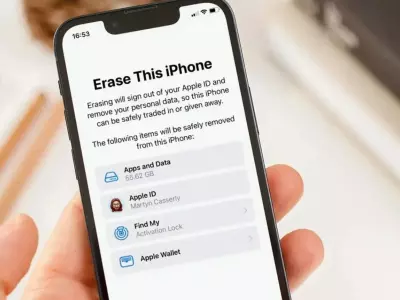
When you decide to sell, give away, or trade in your iPhone, one of the most important steps is to erase all personal information from your device. This protects your personal data and prepares your phone for its new owner. In today’s blog post, we’ll show you how to erase everything from your iPhone quickly, securely, and properly.
1. Why is it important to erase data from your iPhone before selling or trading it in?
Your iPhone contains a large amount of personal information – contacts, photos, messages, passwords, and account access. If you simply remove the SIM card and give away your phone, some of your data may remain accessible.
Erasing all content and settings ensures that your device returns to its original state – just like when it was new.
2. Preparation before erasing data from your iPhone
Before you proceed with the deletion, it’s important to take a few preparatory steps:
Back up your data
You can back up to iCloud:
Go to Settings → [your name] → iCloud → Backup → Back Up Now.
Or use iTunes/Finder on a computer to save a copy locally.
Sign out of your Apple ID (iCloud)
This is a key step to remove Activation Lock.
Go to Settings → [your name] → Sign out and enter your password.
Remove your SIM card
If you’re going to use the card in a new device, be sure to remove it.
3.How to Erase Everything from iPhone
Once you’ve backed up and signed out of iCloud, you can erase everything from your phone in a few steps:
Go to Settings → General → Transfer or Reset iPhone.
Select Erase All Content and Settings.
Confirm your action by entering your device password.
If prompted, enter your Apple ID password to turn off Find My iPhone.
Wait for the process to complete – your iPhone will restart and the home screen for setup will appear.
4.Alternative method via computer (iTunes or Finder)
If the phone is unresponsive or you cannot enter the menu, you can use a computer:
Connect your iPhone to your computer with a cable.
Open iTunes (on Windows) or Finder (on macOS).
Select your device and click Restore iPhone.
Confirm the selection - this will erase everything and install the latest version of iOS.
5.What to do after erasing
After erasing, the device is ready to be:
sold or replaced;
given to a loved one;
or used again if you want a clean start.
Erasing everything from your iPhone is an easy but very important process, especially when preparing the device for sale or exchange. By following the steps above, you will protect your personal data and hand over the phone in perfect condition.
And if you are looking for a refurbished iPhone with a warranty, check out the Hop.bg website - the store for quality refurbished equipment, where you will find tested devices at an excellent price and with a full warranty. Visit our stores in Sofia, Plovdiv, Pleven, Varna and Ruse and see for yourself the quality of the wide variety of products we offer.
Previous post Next postLast publications
Last publications






249.00 €
229.00 €

LaptopApple MacBook Pro A2251 (2020) Space Gray, i7-1068NG7, 32GB, 500GB SSD, 13.3'' Retina 2560x1600
- Refurbished
459.00 €
429.00 €

269.00 €
249.00 €



LaptopApple MacBook Pro A2485 (2021) Space Gray, Apple M1 Pro, 16GB, 512GB SSD, 16'' Liquid Retina XDR 3456x2234
- Refurbished
799.00 €
749.00 €
